UI Configuration
Description of configuration files to use for themes and UI settings in the Arrigo BMS.
Standard Theme
Source file
C:\Program Files\Arrigo\Arrigo Local\Frontend\theme\theme.json
Function
Read more here...
Theme settings in Arrigo - The written words. (regincontrols.com)
UI settings
Source files
C:\Program Files\Arrigo\Arrigo Local\Frontend\theme\settings.json\<YourProjectFolder>\MainComputer\EXOscadaWebSettings.ExoXml
Functions
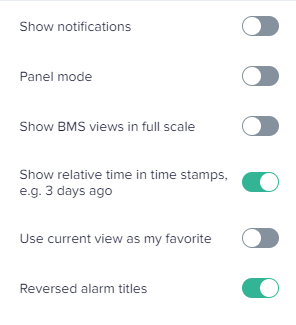
User menu, configure visible and default settings.
Maneuver panel for animation views and widgets, enabling and behavior
The Maneuver panel is used to edit values in elements in Animation views or Widgets.
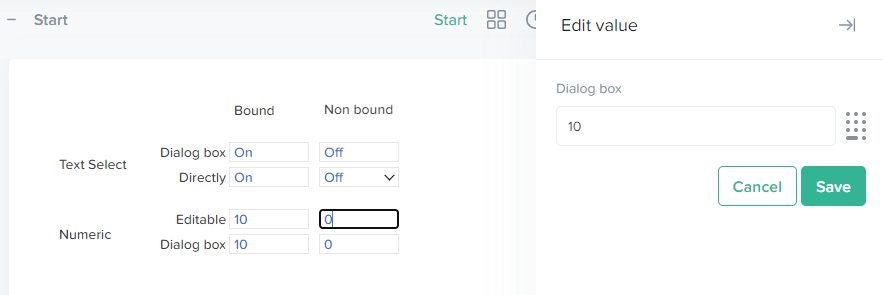
Maneuver panel on the right
Configuration files:
settings.json: "ManeuverPanel": "Yes" - To activate the panel for animation views
EXOscadaWebSettings.ExoXml: <Attribute name="ManeuverComment">No</Attribute> To turn off obligation to write a comment.
Activation of the Maneuver panel
Animation views (When "ManeuverPanel": "Yes")
There are different behaviors of the settings whether the element is bound or not. A bound element is assigned to a controller signal in value with the * character. A non-bound element has no signal connected in the value field. However, it can have a value or a function.
The Maneuver panel pops out in the following situations:
- When a non-bound view element, like Numeric or TextChange, has the Maneuver style attribute set to Dialog box.
- When a bound element (assigned controller signal in value) has the Maneuver style attribute set to Editable, Directly or Dialog box.
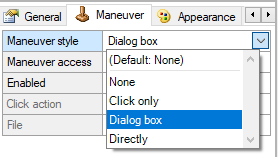
Widgets (Always active)
When Maneuver style is set to Dialog box or Select.
Parameters
Example configuration of settings.json
{
  "fullScaleForViews": {
    "showSetting": "Yes",
    "defaultValue": "Yes"
  },
  "notifications": {
    "showSetting": "Yes",
    "defaultValue": "No"
  },
  "panelMode": {
    "showSetting": "Yes",
    "defaultValue": "No"
  },
  "reversedAlarmsTitle": {
    "showSetting": "Yes",
    "defaultValue": "Yes"
  },
  "showRelativeTime": {
    "showSetting": "Yes",
    "defaultValue": "Yes"
  },
  "ManeuverPanel": "Yes"
}
Example configuration of EXOscadaWebSettings.ExoXml
<?xml version="1.0" encoding="utf-8"?>

<EXOconfigData format="EXOscadaWebSettings">
  <Object type="WebSettings">
...

    <Object type="Settings">
      <Attribute name="AllowDeleteUser">Yes</Attribute>
      <Attribute name="ElectronicSignature">No</Attribute>
      <Attribute name="ManeuverComment">No</Attribute>
    </Object>

...
  </Object>
</EXOconfigData>
Refresh actions
-
Save file
-
Restart IIS
More info
Migration guide - The written words. (regincontrols.com)
AnimationView theme + Legacy theme
Source file
ProjectFolder\Shared\theme\Standard.cwvt.json
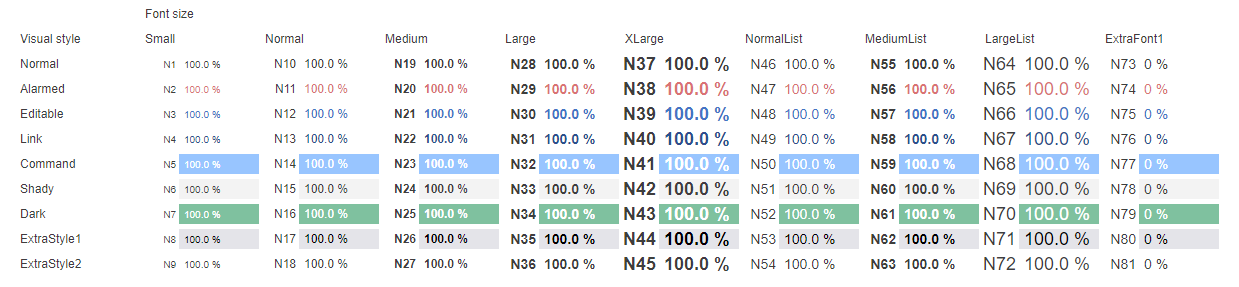
Standard parameters
Colors and fonts
Legacy parameters
Colors and fonts when using //LegacyTheme in a view
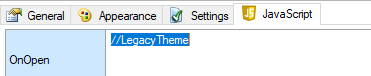
All fonts except Extrafonts are used used in Legacy mode.
Settable in the sections FontSizesFolder and VisualStylesFolder in the Standard.cwvt.json
Refresh actions
-
Save file
-
Restart EXOscada